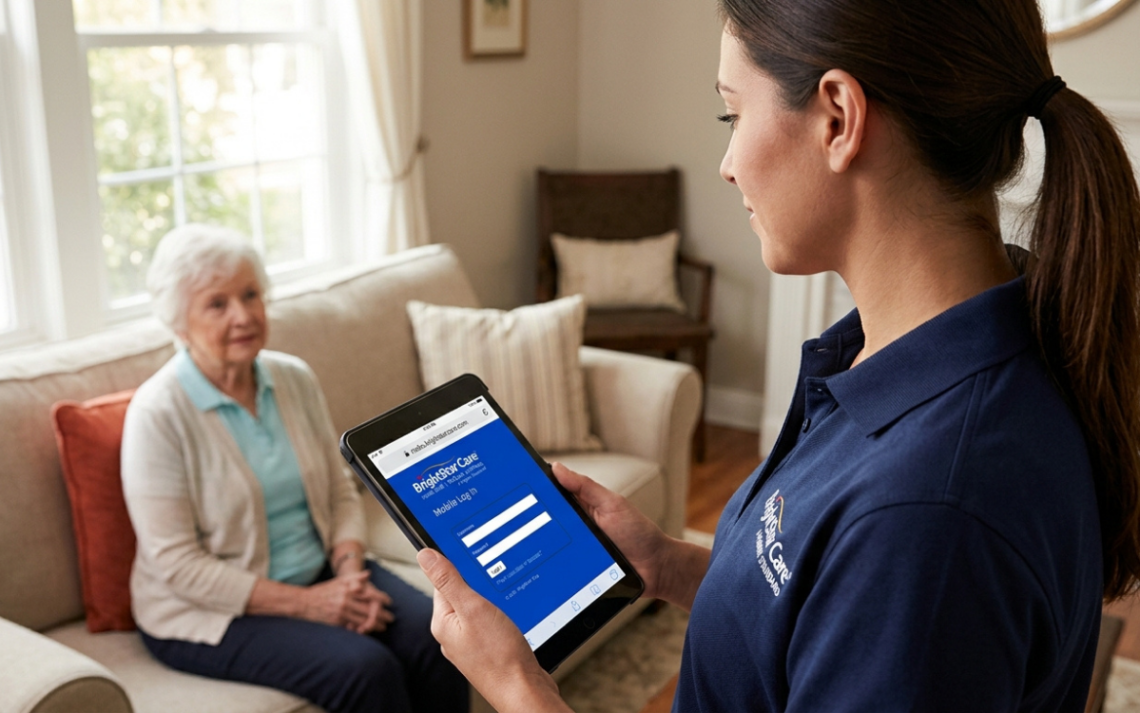
If you are trying to reach the Mabs.brightstarcare.com login, the most important thing to know is simple: the web address is still active, but it does not keep you on a separate MABS-branded sign-in page. The live portal currently redirects users to BrightStar Care’s centralized authentication site, where the page is labeled “Mobile Log in” and instructs users to sign in with an ABS account.
That detail matters. Many third-party pages describe MABS as a general employee, payroll, HR, or customer-service portal, but BrightStar Care’s own published material gives a more specific description: MABS is used as an electronic check-in/out and care-notes system. BrightStar location pages also reference mobile time tracking and mobile point-of-care note taking as part of caregiver workflows.
This guide focuses on what can actually be verified from BrightStar Care’s live login and official website. You will learn how to sign in, recover credentials, troubleshoot redirect problems, recognize the legitimate domains, and understand what MABS appears to do without relying on unsupported feature claims.
What Is the Mabs.brightstarcare.com Login?
The Mabs.brightstarcare.com login is the mobile-facing entry point for BrightStar Care’s ABS environment. When the address is opened, it redirects to authentication.brightstarcare.com, where users see a BrightStar Care Mobile Log in screen with fields for User Name and Password and a prompt to use an ABS account.
The redirect itself provides useful technical context. Its parameters identify the client as AbsMobile and send successful authentication back to mabs.brightstarcare.com/signin-oidc, indicating an OpenID Connect-based sign-in flow. For a normal user, however, none of that needs to be entered or edited manually.
In practical terms, the safest workflow is to start with the short MABS address and let BrightStar Care handle the redirect. Avoid copying a long authentication URL from an old browser session because those URLs can contain temporary state and nonce values intended for a specific sign-in attempt.
Is MABS the Same as ABS?
Not exactly, although they are clearly connected. The public Mabs.brightstarcare.com login page says users should sign in with an ABS account, while the authentication request identifies the mobile client as AbsMobile.
That makes it reasonable to view MABS as the mobile-access side of the broader ABS ecosystem. BrightStar Care does not publicly define the MABS acronym on the login screen, so it is better to avoid presenting an unofficial expansion of the name as fact.
How to Use the Mabs.brightstarcare.com Login
The Mabs.brightstarcare.com login process is short when your account is active and you have the correct credentials. You do not need to create a new public account from the login page.
Follow these steps:
- Open a current browser on your phone, tablet, or computer.
- Enter the official
mabs.brightstarcare.comaddress in the browser. - Allow the site to redirect to BrightStar Care’s authentication domain.
- Confirm that the page displays the BrightStar Care branding and Mobile Log in.
- Enter the ABS User Name assigned to you.
- Enter your password.
- Select Log in.
- After authentication, allow the browser to return you to the MABS application.
The live sign-in page currently presents the username field, password field, login button, and credential-recovery links before authentication. Claims about additional dashboard features should therefore be treated separately from the verified login process.
What Credentials Do You Need?
To complete the Mabs.brightstarcare.com login, you need an existing ABS account. The public page does not show a self-registration or “create account” button, which strongly indicates that account provisioning is handled through BrightStar Care’s internal or local agency processes rather than open consumer registration.
If you are a new caregiver or employee and were never given an ABS username, do not keep trying personal email addresses at random. Contact your local BrightStar Care office, supervisor, scheduler, or onboarding contact and ask which ABS credentials should be used for your role.
What MABS Is Used For at BrightStar Care
BrightStar Care has publicly described MABS as its electronic check-in/out and care notes system. That description is especially useful because it comes from a BrightStar Care location page discussing caregiver performance rather than from a third-party login directory.
Other BrightStar Care career pages describe related mobile workflows such as clocking in and out from a phone and completing point-of-care notes on a mobile device. Those pages do not always name MABS directly, so the most precise interpretation is that mobile time tracking and care documentation are established BrightStar Care workflows, while the Phoenix/Tempe page specifically ties electronic check-in/out and care notes to MABS.
For caregivers, accurate use of these tools can be operationally important. A missed check-in, incomplete note, or incorrect visit record can create downstream questions for scheduling, documentation, or office administration, even when the actual care visit occurred as planned.
What You Should Not Assume About the Mabs.brightstarcare.com Login
Search results contain many articles claiming that the Mabs.brightstarcare.com login provides payroll records, benefits administration, certification uploads, billing tools, shift swapping, or full HR functionality. Some of those capabilities may exist somewhere within BrightStar Care systems or within specific franchise workflows, but the public sources reviewed do not establish that all of them are MABS features.
For an E-E-A-T-quality explanation, the distinction is important. Verified: ABS credentials are used for mobile login, and BrightStar Care has identified MABS with electronic check-in/out and care notes. Not verified from the public MABS pages: a universal list of payroll, benefits, HR, billing, or training features.
That difference is more than editorial caution. When employees are looking for a specific function—such as a pay statement or training record—incorrectly telling them that MABS definitely contains it can send them into unnecessary troubleshooting when their local office may use a different system.
Forgot Your Username? Use the Official Recovery Flow
If the Mabs.brightstarcare.com login rejects your username because you cannot remember it, select User Name in the “Forgot User Name or Password?” area. The official recovery screen asks you to enter your email address and submit the request.
Use the email address associated with your ABS account. If no recovery message arrives, check spam or junk folders, then consider whether your employer may have registered a different work or personal email during onboarding.
Do not repeatedly submit every email address you own. If you are unsure which address is on file, your local BrightStar Care office is better positioned to confirm the account details associated with your employment.
Forgot Your Password? Here Is What the Live Page Requires
Password recovery for the Mabs.brightstarcare.com login is slightly different from username recovery. The current BrightStar Care password-reset screen asks for both your email address and your User Name before you submit the request.
That means remembering your username can be necessary even when the password is the only credential you have lost. If you have forgotten both, recover the username first, then return to the password recovery flow.
This is a small but important point because generic login guides often say “enter your email to reset your password.” The live BrightStar Care form currently requires more than that.
Mabs.brightstarcare.com Login Not Working? Troubleshoot in This Order
When the Mabs.brightstarcare.com login fails, the fastest fix is usually a structured diagnosis rather than repeatedly refreshing the page. Start with the issue that best matches what you see.
1. The Page Does Not Redirect
Type the MABS address directly into the browser instead of opening an old bookmark to a long authentication URL. A normal visit currently redirects from the MABS subdomain to authentication.brightstarcare.com.
If nothing loads, switch between Wi-Fi and mobile data, disable a malfunctioning VPN temporarily if workplace policy permits, and try a current version of Chrome, Safari, Edge, or Firefox. A network-level content filter or stale DNS record can sometimes interfere with authentication redirects.
2. The Login Screen Keeps Looping
A redirect loop can happen when browser cookies or session data become inconsistent. Close duplicate BrightStar tabs, clear site data for the BrightStar Care domains, reopen the browser, and start again from the short MABS address.
Also avoid using a saved deep link that contains a long ReturnUrl, state, or nonce string. The live authentication request uses these values as part of the authorization flow, so an old authentication URL should not be treated as a permanent bookmark.
3. Your Username or Password Is Rejected
Re-enter the credentials manually. Password managers can preserve an outdated password, and mobile keyboards can add capitalization or whitespace that is hard to notice.
If the credentials still fail, use the official recovery links instead of guessing repeatedly. For Mabs.brightstarcare.com login access, username recovery uses your email address, while password recovery currently requires both email and username.
4. You Can Sign In but Cannot Complete the Visit Workflow
A successful login does not necessarily mean every account permission, assignment, or visit is configured correctly. If you can authenticate but cannot see the expected client, shift, or documentation workflow, contact the local office that manages your schedule or account.
That is usually more productive than resetting a working password. Access after sign-in can depend on role, assignment, account status, or local configuration that the public login page cannot diagnose.
5. The Portal Works on One Device but Not Another
When Mabs.brightstarcare.com login works on one phone or computer but fails on another, the account itself is probably not the first suspect. Compare browser versions, cookie settings, content blockers, VPNs, private-browsing mode, and whether the device clock is accurate.
Authentication protocols rely on session state and time-sensitive data. A heavily restricted browser or a device with incorrect date and time settings can cause behavior that looks like a bad password even when the credentials are valid.
6. You Changed Your Password but the Old One Keeps Appearing
Check your browser or password manager for saved BrightStar Care credentials. Autofill may continue submitting an obsolete password even after you successfully completed account recovery.
Delete the outdated saved credential, reload the official login page, and type the new password manually once. Only save it again after confirming the sign-in succeeds.
How to Verify You Are on the Legitimate BrightStar Care Login
Credential theft often starts with a copied login page, so verify the domain before entering an ABS password. The legitimate MABS entry point uses the brightstarcare.com domain, and the current authentication redirect also stays under brightstarcare.com.
Use this quick check before every Mabs.brightstarcare.com login if you arrived through an email, text message, search result, or third-party guide:
- The starting host should be
mabs.brightstarcare.com. - The login redirect should be on
authentication.brightstarcare.com. - The connection should use HTTPS.
- Do not enter credentials into lookalike domains with extra words, hyphens, misspellings, or unrelated top-level domains.
- Do not share your password with a third-party “login support” website.
- When in doubt, type the BrightStar Care address yourself rather than following an unfamiliar link.
A padlock alone is not proof that a site belongs to BrightStar Care. HTTPS protects the connection to a domain; it does not guarantee that the domain itself is the organization you intended to visit.
Mobile Access Tips for Caregivers
The Mabs.brightstarcare.com login is explicitly labeled “Mobile Log in,” so mobile use is not an afterthought. BrightStar Care career pages also promote phone-based time tracking and point-of-care note taking at certain locations.
For more reliable field use, keep the browser updated, allow the session to finish redirecting before switching apps, and avoid opening several copies of the portal at once. If your location’s procedures require check-in or documentation at a specific point in the visit, follow those local instructions rather than relying on a generic online guide.
It is also smart to verify your schedule and account access before the moment you need to document a visit. A forgotten password is much easier to solve before a shift than when a time-sensitive check-in is already due.
MABS Check-In and Care Notes: Practical Accuracy Tips
BrightStar Care’s own description of MABS centers on two operational tasks: electronic check-in/out and care notes. That makes accuracy more important than simply being able to open the portal.
Before submitting visit documentation, follow your agency’s required workflow and verify information rather than relying on memory later. Depending on local policy, useful habits may include checking that you selected the correct client or visit, reviewing the recorded visit times, and completing required documentation while the details are still fresh.
If a technical problem prevents a timely check-in or check-out, follow the escalation procedure provided by your BrightStar Care office. Do not invent timestamps or modify care information simply to make the record appear complete.
Privacy and Security Best Practices
Because the Mabs.brightstarcare.com login is connected to caregiver operational workflows, treat the account as a work credential. Never reuse the ABS password on unrelated websites, never store it in an unprotected note, and never send it to a coworker or client by text.
If you use a personal device, apply a screen lock and keep the operating system current. When you finish work on a shared or borrowed device, sign out fully and close the browser rather than leaving an authenticated session available to the next user.
Care notes may involve sensitive client information. Follow BrightStar Care policies and applicable privacy requirements for viewing, documenting, photographing, copying, or discussing client information; a successful portal login does not override those obligations.
MABS vs. BrightStar Care’s Public Website
One common source of confusion is the difference between employee-facing operational access and BrightStar Care’s public consumer website. The main BrightStar Care site is designed around services, local care agencies, careers, and care inquiries, while MABS requires an ABS account.
If you are a client or family member trying to request home care, you generally should not expect the Mabs.brightstarcare.com login to function as a public customer registration portal. BrightStar Care’s public site instead provides agency-location tools and care-contact options.
That distinction can save time. Use the public BrightStar Care website for finding care or contacting a location; use MABS when you have been given ABS credentials for an authorized operational workflow.
When to Contact Your Local BrightStar Care Office
Not every access problem is a technical login problem. Contact your local office when you can successfully authenticate but something specific to your employment, schedule, assignment, or account appears incorrect.
Examples include:
- A scheduled client or visit is missing.
- Your account appears active but expected functions are unavailable.
- You never received an ABS username during onboarding.
- Your recovery email does not appear to match the account on file.
- A visit or documentation item appears under the wrong assignment.
- You have been told your employment access changed but the portal has not reflected it.
- You need guidance on your location’s required check-in, check-out, or care-note procedure.
Give the office specific information: what you were trying to do, what happened, when it happened, and whether authentication itself succeeded. Avoid sending passwords or sensitive client details through unsecured channels.
Mabs.brightstarcare.com Login FAQ
1. What is the official Mabs.brightstarcare.com login page?
The official entry point is the BrightStar Care MABS subdomain. At present, visiting it redirects to authentication.brightstarcare.com, where the page is labeled Mobile Log in and states that an ABS account is required.
That redirect is expected. You do not need to search for a separate username form on the MABS subdomain itself.
2. Can I create a new account from the Mabs.brightstarcare.com login screen?
The public login screen does not currently display a self-registration option. It asks for an existing ABS username and password, so new users should obtain account information through the BrightStar Care office or onboarding contact responsible for their employment.
Avoid third-party sites that claim they can create or activate a BrightStar Care ABS account for you. Account provisioning should be handled through authorized BrightStar Care channels.
3. How do I reset my MABS password?
Open the Mabs.brightstarcare.com login, choose the password-recovery link, and follow the BrightStar Care authentication flow. The live reset form currently asks for both the email address and User Name associated with the account.
If you have forgotten the username too, use the username-recovery option first. That form asks for your email address.
4. Why does MABS redirect me to authentication.brightstarcare.com?
The redirect is part of BrightStar Care’s centralized sign-in process. The live authorization URL identifies the application as AbsMobile and returns the authenticated session to the MABS domain through an OpenID Connect callback.
For users, the key point is that both the starting address and authentication host are under the BrightStar Care domain. A redirect to an unrelated lookalike domain should be treated cautiously.
5. What should I do if the Mabs.brightstarcare.com login works but my shift or client is missing?
Do not reset your password if authentication is already successful. Missing assignments, clients, or visit options are more likely to require help from the local BrightStar Care office, scheduler, supervisor, or administrator who manages your access and assignments.
Tell them exactly what you can see after login, which shift or client is missing, and the device or browser you are using. That gives the office more useful information than simply reporting that “MABS is not working.”
Final Takeaway
The Mabs.brightstarcare.com login is best understood as BrightStar Care’s mobile ABS access point, not as a generic public customer portal. Start from the official MABS subdomain, confirm the redirect stays on brightstarcare.com, sign in with your ABS credentials, and use the built-in username or password recovery tools when needed.
If login succeeds but the workflow inside MABS is wrong, stop troubleshooting the password and contact your local BrightStar Care office instead. The most effective next step is to separate authentication problems from account, assignment, or visit-configuration problems—then send the right issue to the person who can actually fix it.